App Download Hub is an independent guide. We are not affiliated with Microsoft. For official documentation, see Microsoft’s own support pages.
Resetting Windows is the reliable cure for a machine that has become slow, unstable, or cluttered beyond rescue, and it is the right thing to do before selling or passing on a laptop. Windows has a reset built in, so you do not need installation media or a product key in most cases. The important decisions all happen in the first two screens, and this guide walks through them before you commit.
Back up before anything else
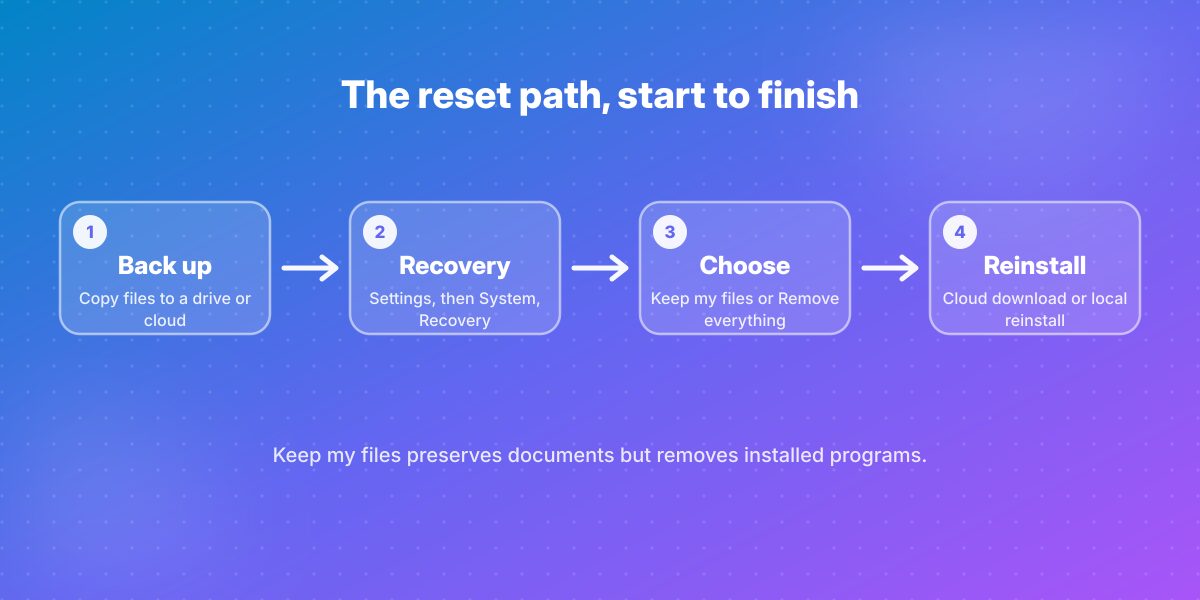
Even the option that promises to keep your files can fail if a drive is failing or power is interrupted partway through. Copy anything irreplaceable to an external drive or cloud storage first.
Pay attention to the things that do not live in your Documents folder: browser bookmarks and saved passwords, Outlook data files, game save folders, licence keys for paid software, anything sitting on the Desktop, and files in a secondary user account. Also note which programs you will need to reinstall, because none of them survive a reset.
Keep my files or Remove everything
This is the choice that matters most, and the labels undersell the difference.
Keep my files preserves your personal files in your user folders. It removes every installed application and returns Windows settings to their defaults. Despite the name, this is not a light touch: you will be reinstalling your software afterwards. It is the right pick for a machine you are keeping that has become unreliable.
Remove everything deletes files, applications and settings, returning the PC to a state close to its first boot. Choose this when you are selling, donating or recycling the machine, or when you suspect malware deep enough that you do not trust any file on the disk.
If you are passing the machine on, open the additional settings on the Remove everything path and turn on the option to clean the drive. It overwrites the free space so that files cannot be easily recovered. It adds hours to the process, which is precisely why it is worth doing on a machine leaving your hands, and why it is a waste of time on one you are keeping.
Cloud download or local reinstall
The next screen asks how Windows should rebuild itself.
Local reinstall builds a fresh copy from files already on your disk. It needs no internet connection and is usually quicker, but if those files are damaged, which is often why the PC is misbehaving, the reset can fail or reproduce the same fault.
Cloud download fetches a fresh copy from Microsoft. It uses roughly four gigabytes or more of data and needs a stable connection, but it reliably produces a clean result and installs a more current build, which means less updating afterwards. On a metered or slow connection, choose local. Otherwise cloud download is the better default, and it is the one to use if a local reinstall has already failed once.
Resetting Windows 11
- Open Settings with Windows key + I.
- Go to System, then Recovery.
- Next to Reset this PC, click Reset PC.
- Choose Keep my files or Remove everything.
- Choose Cloud download or Local reinstall.
- Review the Additional settings screen, then click Next and Reset.
Keep the laptop plugged in. Windows restarts several times and the screen may sit on a percentage for long stretches without appearing to move, which is normal.
Resetting Windows 10
- Open Settings, then Update & Security.
- Select Recovery in the sidebar.
- Under Reset this PC, click Get started.
- Pick your options as above and confirm.
One thing worth knowing before you spend an afternoon on this: Windows 10 reached the end of Microsoft’s mainstream support on 14 October 2025. A reset will give you a clean Windows 10, but it will not bring back security updates unless you are enrolled in Extended Security Updates. If the hardware meets the Windows 11 requirements, upgrading is the better use of the same afternoon.
When Windows will not start
You can still reset from the recovery environment. There are three ways in. Hold Shift while clicking Restart on the sign-in screen. Or interrupt the boot by holding the power button as Windows begins loading, three times in a row, which triggers automatic repair. Or boot from Windows installation media and choose Repair your computer.
From there, go to Troubleshoot, then Reset this PC, and the same choices appear. Cloud download is usually the better option here, since a machine that will not boot often has damaged local files.
What to expect while it runs
Budget somewhere between thirty minutes and a couple of hours. A modern laptop with an SSD doing a local reinstall may finish in half an hour. A cloud download on a slow connection, or Remove everything with drive cleaning switched on, can run for several hours. Do not interrupt it, and do not let a laptop run out of battery partway through.
Afterwards
Windows reactivates itself. Your licence is tied to the hardware as a digital entitlement, so you will not be asked for a product key on a machine that was already activated. Sign in with the same Microsoft account to restore that link if activation does not happen immediately.
Then work through the housekeeping: run Windows Update repeatedly until it reports nothing further, because the first pass rarely catches everything. Install the graphics, chipset and Wi-Fi drivers from your manufacturer’s support site rather than relying on the generic ones Windows supplies. Reinstall your applications. Check that Windows Security is active. If you chose Keep my files, look for a Windows.old folder, which holds the previous installation and can be removed through Storage settings once you are satisfied nothing is missing.
FAQ
Does resetting remove viruses? Usually. Remove everything with the drive cleaned is thorough. Keep my files is less certain, because infected documents in your user folders survive.
Will I need my Windows product key? No, on a PC that was already activated.
Does a reset remove the Microsoft account? It removes it from the PC. The account and anything in OneDrive are untouched.
Can I stop a reset partway through? No. Interrupting it can leave the installation unbootable.
Is a reset the same as a clean install? Not quite. A reset keeps the existing partition layout and manufacturer recovery image. A clean install from a USB drive wipes more thoroughly and removes preinstalled extras.
What is the difference between Keep my files and Remove everything? Keep my files preserves documents and personal folders while removing apps and settings. Remove everything wipes the drive. Neither keeps installed programs, so you will be reinstalling applications either way.
How long does a reset take? Typically thirty minutes to two hours, depending on the drive and whether you chose the cloud download or local reinstall. A machine with a mechanical hard drive can take considerably longer.
Should I choose cloud download or local reinstall? Cloud download fetches fresh files from Microsoft and avoids reusing a damaged local copy, which makes it the better choice if the machine was misbehaving. Local reinstall is faster and works without a good connection.
Will my drivers come back automatically? Windows installs generic drivers and then fetches most of the rest through Windows Update. Laptops sometimes need manufacturer-specific utilities reinstalling afterward for things like function keys and power management.
Does Remove everything make my files unrecoverable? Only if you also enable the option to clean the drive, which overwrites the free space and takes considerably longer. Use it if you are selling or giving the machine away.
Should I back up before resetting even if I keep my files? Yes, always. Keep my files is reliable in normal circumstances, but a reset started on a machine that is already unstable can fail partway and leave the drive in a poor state. An external copy costs nothing but time.