App Download Hub is an independent guide. We are not affiliated with any DNS provider. Blocking ads may break sites that depend on advertising revenue; please consider allow-listing sites you want to support.
A browser extension blocks ads on one browser on one device. Change the DNS server on your router and you cover everything on the network at once, including phones, tablets, smart TVs and the devices that have no way to install an ad blocker at all. It is a single setting, it costs nothing, and it is reversible in under a minute.
How blocking at the DNS layer works
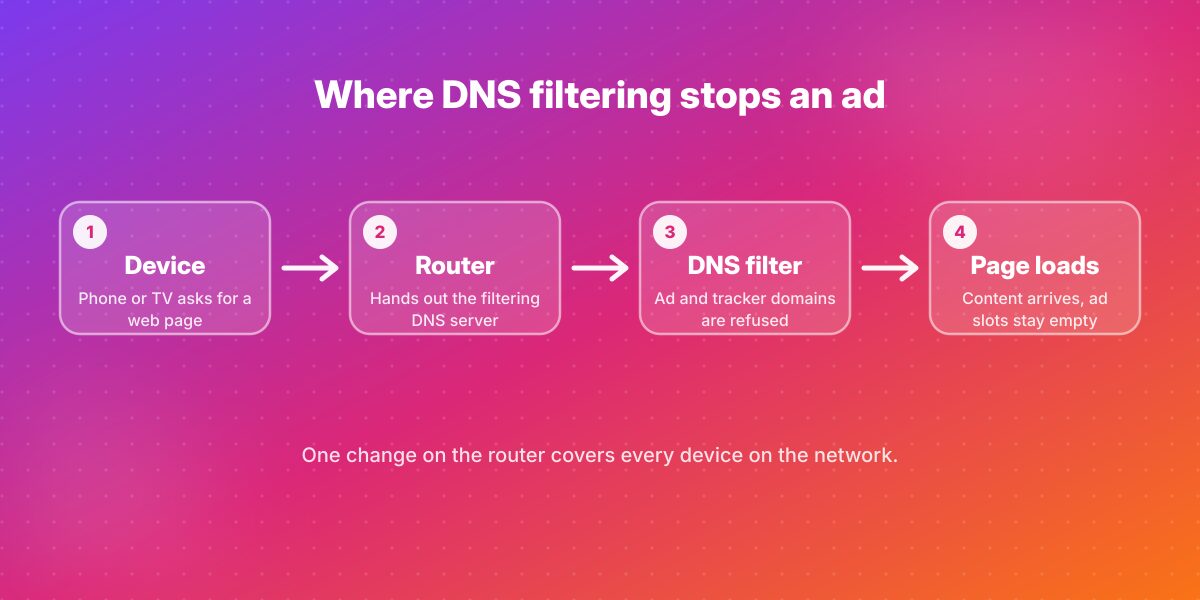
Every time a device loads a page, it asks a DNS server to turn domain names into IP addresses. A normal page triggers dozens of these lookups: the site itself, plus the ad networks, analytics scripts and trackers embedded in it.
A filtering DNS service answers lookups for ordinary domains normally and refuses the ones on its blocklist. The ad never downloads because the device never learns where to fetch it from. Pages often load faster as a result, since a good deal of what you were waiting for was advertising.
The appeal of doing this on the router is that the router tells every device which DNS server to use. Change it once and the whole house follows.
Be clear about the limits
DNS filtering is genuinely useful, but it is routinely oversold, and knowing the boundaries saves disappointment.
It cannot block ads served from the same domain as the content. YouTube is the example everyone notices: the video and the advertisement arrive from Google’s own servers, so blocking those would break YouTube entirely. The same applies to sponsored posts inside Facebook, Instagram and TikTok feeds.
It blocks domains, not elements, so where a page would have shown a banner you may get an empty space rather than a tidy layout. And it does not stop first-party tracking by the site you are actually visiting.
What it does well is remove third-party ad networks, cut out tracking and telemetry across every device, block many malware and phishing domains, and quieten the chatter from smart TVs and IoT gadgets that nobody else can touch.
Choosing a service
AdGuard DNS is the usual starting point: free, no account, and blocking is on by default. Its public resolvers are 94.140.14.14 and 94.140.15.15, with 2a10:50c0::ad1:ff and 2a10:50c0::ad2:ff for IPv6. There is a family-protection pair at 94.140.14.15 and 94.140.15.16 that additionally filters adult content, and a non-filtering pair at 94.140.14.140 and 94.140.14.141 if you ever want to compare behaviour.
NextDNS is the better choice if you want control. You create an account, get your own endpoint, and then choose blocklists, allow-list individual domains and see logs of what was blocked. The free tier covers a generous monthly query allowance and the paid tier is a few dollars a year.
ControlD sits between the two, with a usable free tier and per-service rules.
Two common suggestions are worth correcting. Cloudflare’s 1.1.1.2 blocks malware and 1.1.1.3 adds adult content, but neither blocks advertising. Quad9’s 9.9.9.9 is a security filter, not an ad blocker. Both are good resolvers; they just will not do this job.
Changing it on the router
Sign in to the router’s admin page. The setting is usually under LAN, DHCP or Internet settings, and is labelled DNS Server, Primary and Secondary DNS, or sometimes Manual DNS.
Enter your chosen addresses as primary and secondary, save, and reboot the router. The change reaches each device when its DHCP lease renews, so reconnect devices to Wi-Fi or restart them if you want it to take effect immediately.
One detail catches people out. Some routers have two DNS fields: one for the router’s own internet connection, and one it hands out to clients. The second is the one that matters. If your router only lets you set DNS on the internet connection, the effect is usually the same as long as devices are using the router itself as their resolver.
If your ISP-supplied router does not allow a DNS change at all, which is common, you have two routes: put it into bridge mode behind your own router, or set the DNS manually on individual devices.
Checking it worked
Visit any of the well-known ad-block test pages and see what gets through. A quicker check on Windows is nslookup doubleclick.net, which should return a null or blocked response rather than a real address.
If nothing seems to change, clear the DNS cache. On Windows run ipconfig /flushdns. On a Mac, sudo dscacheutil -flushcache. Browsers cache separately, so restart yours too.
What gets around it
Two things bypass a router DNS setting, and both are worth knowing.
Encrypted DNS in the browser. Chrome, Firefox and Edge can send DNS queries over HTTPS straight to their own provider, ignoring your router entirely. Turn off Secure DNS in each browser’s privacy settings, or point it at your filtering provider’s own encrypted endpoint.
Devices with hardcoded resolvers. Some streaming sticks, consoles and IoT devices are built to use a fixed public DNS server regardless of what the router says. The fix is a firewall rule redirecting outbound traffic on port 53 back to your chosen resolver, which routers running OpenWrt or similar firmware can do.
Going further
If you enjoy this, Pi-hole and AdGuard Home run on a Raspberry Pi or any always-on machine on your network and give you full control: your own blocklists, per-device rules, and a dashboard showing exactly what was blocked. The trade-off is that the whole household’s internet depends on a box you now maintain, so set up a fallback resolver before you rely on it.
FAQ
Will this block YouTube ads? No. They come from the same servers as the videos.
Does it slow browsing down? Usually the opposite, because fewer requests are made.
Can I allow ads on sites I want to support? With NextDNS, ControlD or Pi-hole, yes. The free public AdGuard resolvers offer no allow-listing.
Will it break anything? Occasionally. Some shopping links and login flows route through tracking domains. If a site misbehaves, switch back to your normal DNS briefly to confirm the cause.
Is it safe to use a third-party DNS provider? They can see which domains you look up, so this is a question of trust. Read the privacy policy of whichever you choose.
Will this work on every device in the house? Any device that uses the router’s DNS, which is most of them. Devices with DNS hardcoded in the app, and anything using DNS over HTTPS in its browser, will bypass it until you turn that setting off.
Does this stop tracking as well as ads? It blocks requests to known tracking domains, which removes a lot of it. It does not stop tracking that happens on the same domain as the content you are viewing, and it is no substitute for browser-level protections.
What happens when a site breaks? Temporarily switch the device back to automatic DNS to confirm the filter is the cause. Most filtering services let you allow a specific domain, which is a better fix than disabling the whole thing.
Is a Pi-hole better than a filtering DNS service? A Pi-hole gives you full control, per-device rules and local logs, at the cost of running a small machine continuously. A hosted filtering resolver needs no hardware and is the easier choice for most households.
Will my ISP still see what I browse? Changing DNS moves the lookups to another provider, but the connections themselves still travel over your ISP’s network. If hiding browsing from your provider is the goal, a VPN is the tool for that.