App Download Hub is an independent guide. We are not affiliated with any network hardware manufacturer. For model-specific help, use your switch maker’s support pages.
Routers come with four LAN ports, give or take, and that number stopped being adequate some time ago. A desk with a PC and a monitor dock, a TV, a console, a NAS, a printer, a couple of access points — four ports disappears quickly. A network switch solves this for very little money, and connecting one is genuinely as simple as plugging in a cable. The parts worth understanding are which port to use, why nothing needs configuring, and where the bottlenecks hide.
What a switch does, and what it does not
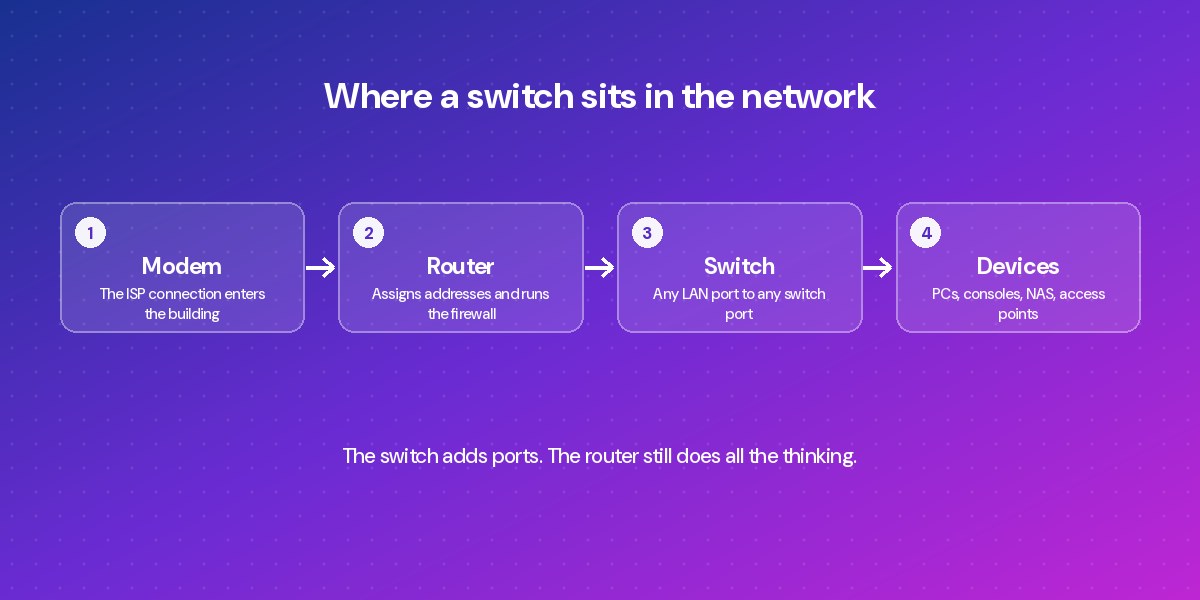
A switch is a multiplier for Ethernet ports. It learns which device is on which port and forwards traffic only where it needs to go, so eight devices on a switch do not slow each other down the way they would on an old hub.
What it does not do is just as important. A switch does not hand out IP addresses, does not run a firewall, does not provide Wi-Fi, and does not connect to the internet by itself. All of that stays with the router. The switch is deliberately dumb, which is why it needs no setup and why brand compatibility is a non-issue: a Netgear switch works behind a TP-Link router behind an ASUS access point, because they are all speaking plain Ethernet.
Connecting it: the whole job
- Run a cable from any LAN port on the router to any port on the switch. That is the connection. Do not use the router’s WAN or Internet port, which is reserved for the modem.
- Power the switch on. Most desktop switches use a small external adapter.
- Plug your devices into the remaining switch ports.
- There is no step four. Devices request addresses from the router exactly as before, and the switch passes those requests along.
Two details occasionally matter. Some older switches have a port labeled Uplink; on modern hardware this is vestigial, because every port supports auto-MDI/MDI-X and sorts out the cable direction itself. And on a managed switch, the port you use for the router does matter if you have configured VLANs, which is covered further down.
Cables: the part people get wrong
The cable is more often the limiting factor than the switch. Cat 5e handles gigabit comfortably and will do 2.5 gigabit over typical household distances. Cat 6 is the sensible default for anything new, and Cat 6a is worth it for long runs or 10 gigabit.
Avoid Cat 5 without the “e”, which is genuinely old and caps at 100 Mbps. If you have unlabelled cables in a drawer from a decade ago, they are the first thing to suspect when a gigabit link negotiates at 100 Mbps. The marking is printed along the jacket.
Speed, and the uplink trap
Here is the subtlety worth understanding before buying. The speed printed on the box describes each individual port, but every device on the switch shares the single link back to the router.
Eight devices on a gigabit switch all talking to the internet at once share one gigabit link to the router. That is usually fine, because internet plans are the real constraint and most devices are idle most of the time. But if two devices on the same switch talk to each other — a PC backing up to a NAS, say — that traffic never touches the router at all and runs at full port speed. This is a genuine advantage of putting your NAS and your main PC on the same switch.
The trap appears with multi-gigabit switches. A cheap 2.5 gigabit switch with a single 1 gigabit uplink will let two devices on the switch talk to each other at 2.5 gigabit, but everything going upstream still squeezes through one gigabit. If you are buying 2.5 GbE for a reason, check that the uplink is at least as fast as the access ports, or that there is a 10 gigabit SFP+ port for the link back to the router or NAS.
In 2026 there is no reason to buy a 100 Mbps switch at any price. Gigabit is the floor.
Managed or unmanaged
For almost every home and small office, unmanaged is correct. No configuration, no web interface, no maintenance, and nothing to go wrong. Plug it in and forget about it.
A managed switch earns its extra cost when you need specific behavior:
- VLANs to separate traffic — a guest network, an IoT network for cameras and smart plugs, or a work network kept apart from the rest of the house.
- Link aggregation to combine two ports into one faster link to a NAS.
- Port mirroring for monitoring or diagnostics.
- QoS to prioritize particular traffic types.
- PoE control to power-cycle an access point or camera remotely.
- Per-port statistics for working out which link is saturated.
If you cannot name which of those you need, buy unmanaged. The in-between category, variously called smart or web-managed, offers VLANs and basic QoS through a simple web page at a modest premium, and is a reasonable middle ground if you want VLANs and nothing more. If you are building a separate network for smart home devices, our guide on setting up an IoT network covers the reasoning.
Power over Ethernet
A PoE switch sends power along the same cable as data, so a camera, access point or IP phone needs only one cable and no nearby socket. This is the single most useful feature for anyone mounting access points on a ceiling or cameras under eaves.
Check two numbers. The standard: 802.3af provides roughly 15 watts per port, 802.3at (PoE+) around 30, and 802.3bt (PoE++) considerably more for devices like pan-tilt cameras. And the total budget: an eight-port switch advertising PoE may only supply enough power for four devices at full draw. Add up what your devices need before buying.
PoE has no effect on network speed. A device drawing power through the cable runs at the same rate as one that does not.
Chaining switches
You can connect a switch to another switch exactly as you connected the first to the router: any port to any port. This is how most offices expand, with a switch in each room.
Keep the chain short. Two or three deep is sensible; beyond that, every hop adds a little latency and all the traffic from the far end funnels through a single shared link at each step. A better pattern for a larger space is to run cables back from each room to one central switch, rather than hopping from room to room.
One real hazard: never plug two ports of the same switch into each other, or wire two switches together with two cables. On an unmanaged switch this creates a broadcast loop that will saturate the network within seconds and take everything offline. Managed switches and some cheaper ones with loop prevention will catch it; most unmanaged ones will not. If a network dies suddenly after cabling work, look for a loop first.
Where to put it
Switches generate a little heat and the cheaper ones can whine faintly. For a living room or bedroom, buy fanless — most desktop switches under about sixteen ports are. Leave some air around it, and if it is going in a cupboard with other equipment, give it a shelf of its own rather than stacking the router on top.
Metal-cased switches run cooler and tolerate a cramped cupboard better than plastic ones. Several are wall-mountable, which keeps a media cabinet tidy.
When something does not work
No link light on a port. Suspect the cable before anything else. Swap it for a known-good one.
A device gets no IP address. Check the switch is connected to a LAN port on the router rather than the WAN port. This is the most common wiring mistake.
Negotiating at 100 Mbps instead of gigabit. An old Cat 5 cable, or a damaged one. A single broken pair drops a gigabit link to 100 Mbps without any obvious error.
The whole network goes down. Look for a cabling loop, especially if someone has just tidied the cupboard.
PoE device will not power on. Check the power budget and the PoE standard. A device needing PoE+ will not run from an 802.3af port.
FAQ
Does the switch need to match my router’s brand? No. Ethernet is a standard, and mixing brands causes no problems.
Do I need to configure an unmanaged switch? No. It has no settings and no interface. Plug it in and it works.
Will adding a switch slow down my internet? No. Your internet speed is set by your plan, and a switch adds a fraction of a millisecond.
Can I plug a switch into another switch? Yes, any port to any port. Keep the chain to two or three deep.
Is a 2.5 gigabit switch worth it? Only if the devices at both ends support it and the uplink is fast enough to carry it. For general internet use, gigabit is rarely the limit.
Related: Setting up an ASUS router · Setting up an IoT network · Best mesh Wi-Fi systems