App Download Hub is an independent guide. We are not affiliated with ASUS. For model-specific help, use ASUS’s own support pages.
ASUS routers have a reputation for being powerful and slightly intimidating, mostly earned by a web interface that exposes several hundred settings with no obvious order of importance. The ASUS Router app exists to hide all of that for the ten minutes it takes to get online, and it does the job well. You can have a new Wi-Fi 6 or Wi-Fi 7 router running properly in about as long as it takes to unbox it, and then go back later for the advanced settings once the house is connected.
Getting the app
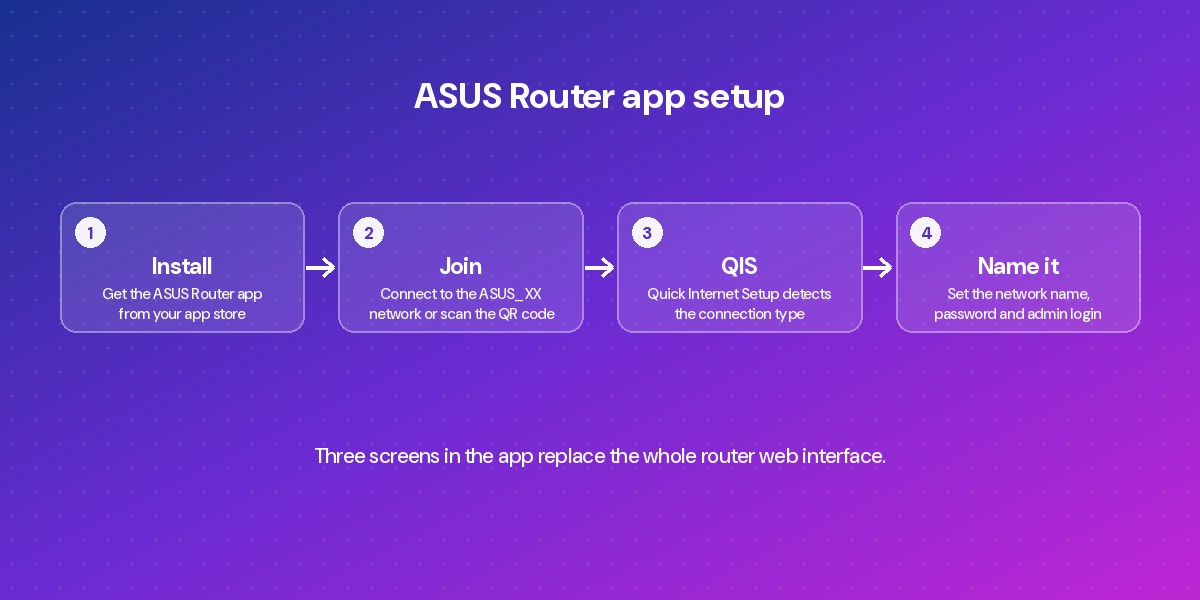
Search for ASUS Router on the App Store or Google Play. The publisher is ASUSTeK Computer Inc. It is free, and it is the same app whether you are setting up a single router, a ZenWiFi mesh set, or adding a node to an existing system.
Install it before you unplug anything, while you still have a working connection. The app will want to download a firmware update during setup, and starting with the app already installed saves a frustrating detour.
Which ASUS models this covers
The app handles the current Wi-Fi 6, 6E and Wi-Fi 7 lineup and a good deal of older hardware. On the Wi-Fi 7 side that includes dual-band models such as the RT-BE58U and RT-BE50, tri-band models like the RT-BE92U with its 10G port, the compact RT-BE58 GO travel router, and the ZenWiFi BE series mesh kits. Wi-Fi 6 and 6E models from the RT-AX and ZenWiFi XT ranges work the same way.
ASUS markets most of these as Extendable Routers, meaning any of them can later become part of an AiMesh system rather than being replaced. That is worth knowing before you buy an extender: with ASUS hardware, a second router is usually the better purchase.
Before you start
- Power down your modem completely. Unplug it, and if it has a battery backup, remove the battery. Modems remember which device they were talking to, and skipping this step is the usual reason a new router shows no internet connection.
- Find the label. On the back or underside of the router you will find the default network name, in the form
ASUS_XX, the default password, the admin credentials, and on most recent models a QR code that shortcuts the whole pairing step. - Know your connection type. Most home connections are straightforward DHCP and the router detects this automatically. If your ISP uses PPPoE you will need the username and password they supplied. Fiber services sometimes require a VLAN ID.
Running Quick Internet Setup
ASUS calls the setup wizard QIS, for Quick Internet Setup. In the app it is three screens.
- Connect the hardware. Cable from the modem into the router’s WAN port — usually the differently colored one, marked WAN or Internet. On multi-gig models the 10G or 2.5G port may be the one to use if your plan is fast enough to need it. Power the modem up first and wait two or three minutes for it to come online, then power up the router.
- Open the app and tap Setup. Choose to set up a new router. The app will ask for camera access so you can scan the QR code on the label; if you would rather not, join the
ASUS_XXnetwork manually in your phone’s Wi-Fi settings using the password from the label, then return to the app. - Let QIS detect the connection. It will identify a DHCP connection by itself. For PPPoE it will prompt for the username and password.
- Name your network and set a password. Use something meaningful rather than the default, and a password of reasonable length. Whether to use one name for all bands or separate names is covered below.
- Set the router login. This is separate from the Wi-Fi password and controls access to the settings. Do not leave it as admin/admin, which older ASUS routers used to allow.
- Let the firmware update run. It will almost certainly want to. Leave it alone until it reboots.
If the app cannot find the router, open a browser on a device connected to the router’s network and go to http://www.asusrouter.com, which reaches the same setup wizard. That address works the same way the Verizon gateway addresses do: locally only, resolving to the router’s own address.
One network name or several?
A Wi-Fi 7 tri-band router broadcasts on 2.4 GHz, 5 GHz and 6 GHz. ASUS defaults to Smart Connect, which puts all of them under a single name and steers each device to whichever band it judges best.
For most households that is the right choice and you should leave it alone. There are two reasons to split the bands into separate names. The first is smart home setup: cameras, plugs, doorbells and printers are frequently 2.4 GHz only, and pairing them is far easier when you can explicitly join a 2.4 GHz network. Our guides to connecting a Ring doorbell and setting up an HP printer both run into this. The second is if you have a device that keeps being steered onto a band that works poorly for it.
A reasonable compromise is to leave Smart Connect on, and temporarily split the bands only when adding a stubborn device.
The 6 GHz band and Wi-Fi 7
On Wi-Fi 6E and Wi-Fi 7 routers, 6 GHz is the clean new band: very fast, uncongested, and short-ranged. It does not travel through walls well, so treat it as a same-room band rather than a whole-house one. Only recent phones, laptops and a few media devices can use it.
Wi-Fi 7 adds Multi-Link Operation, which lets a capable device use more than one band at once rather than picking one. It is enabled by default where supported and is the main practical reason Wi-Fi 7 feels more stable rather than merely faster. 160 MHz channel width is also worth confirming is switched on if your plan is gigabit or above, since it is what lets a single device reach top speeds. Our Wi-Fi 7 router comparison covers which features matter at which price.
Settings worth changing after setup
- Security mode. Set WPA2/WPA3 mixed mode rather than WPA3 only. Mixed mode keeps older smart home devices working, which WPA3-only frequently breaks. See WPA2 vs WPA3.
- AiProtection. ASUS’s built-in security, powered by Trend Micro and included at no extra cost. Turn it on. It blocks known malicious sites and flags compromised devices on the network.
- Automatic firmware updates. Under Administration. Worth enabling on any router.
- Guest network. A separate network for visitors and, more usefully, for smart home gadgets you would rather keep away from your computers.
- DHCP reservations. Pin printers, cameras and servers to fixed addresses so they stop moving around.
- Parental controls and Smart Home Master. Scheduling and per-device filtering, if that is useful in your household.
- VPN Fusion. Routes specific devices through a VPN while leaving others on the normal connection. Useful if you want a streaming box unaffected by a VPN. Our router VPN guide covers the general approach.
Adding AiMesh nodes
If one router does not cover the house, AiMesh lets you add a second ASUS router as a node rather than buying a dedicated extender. In the app, open the main router, choose to add an AiMesh node, and power the second router up nearby in factory state. The app finds it, pairs it, and copies the network settings across so there is only one network name.
Place the node roughly halfway between the main router and the dead spot, not in the dead spot itself. A node that can barely hear the main router will relay a weak signal rather than fix it. If you can run Ethernet to the node, do it — a wired backhaul is dramatically better than a wireless one and is the single biggest improvement available to a mesh system. This is a good reason to have a network switch in the mix.
When setup will not complete
No internet after setup. Almost always the modem remembering the previous device. Power the modem off for a full two minutes, then back on, and wait before restarting the router.
The app cannot find the router. Check your phone is on the ASUS_XX network and not on cellular data, and disable any VPN. Failing that, use asusrouter.com in a browser.
QIS keeps asking for a PPPoE password. The router has detected PPPoE on the line. Get the credentials from your ISP — they are not the same as your account login.
Stuck in a setup loop. Hold the reset button on the back for about ten seconds until the power light flashes, then start again from factory state.
Slow speeds on 5 GHz. Check 160 MHz is enabled and that the channel is not overlapping a neighbor’s. ASUS’s channel selection usually handles this, but a manual choice sometimes helps in dense apartment buildings.
FAQ
Do I have to use the app? No. Everything is available at asusrouter.com in a browser, which exposes far more settings. The app is faster for setup and better for day-to-day checks.
Can I mix Wi-Fi 6 and Wi-Fi 7 routers in AiMesh? Yes. Make the newer, faster router the main unit and use the older one as a node.
Is the 6 GHz band worth enabling? Yes if you own devices that support it, but expect it to be a same-room band rather than whole-house coverage.
Does AiProtection cost extra? No. It is included on supported models with no subscription.
Will a Wi-Fi 7 router speed up my old laptop? Only slightly. It still connects at its own standard, though it benefits from a less congested network overall.
Related: Best Wi-Fi 7 routers · WPA2 vs WPA3 · Connecting a network switch